Installation Guide
Chrome Users
Method 1: Chrome Web Store (Recommended)
- Visit the Chrome Web Store
- Click “Add to Chrome”
- Confirm the installation
⚠️
The extension may not be available on the Chrome Web Store in some countries or regions. If you cannot access the store or find the extension, you can use a VPN to change your IP to another country, or use Method 2: Manual Installation below.
Method 2: Manual Installation
If you cannot access the Chrome Web Store, you can install the extension manually:
- Download the extension ZIP file from here (v2.20.0)
- Extract the ZIP file to get a
.crxfile - Open Chrome and navigate to
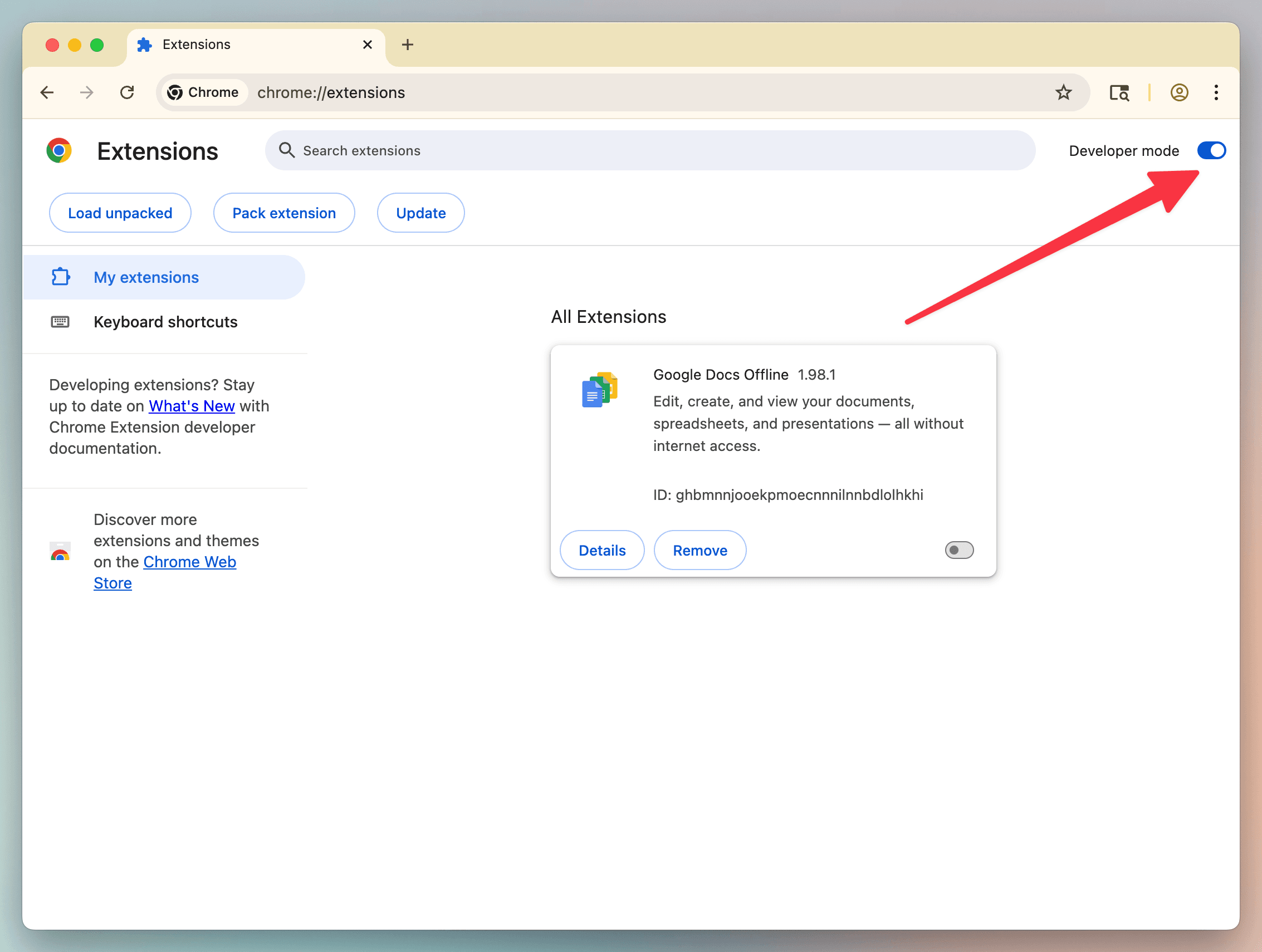
chrome://extensions/ - Enable “Developer mode” (toggle in the top right)
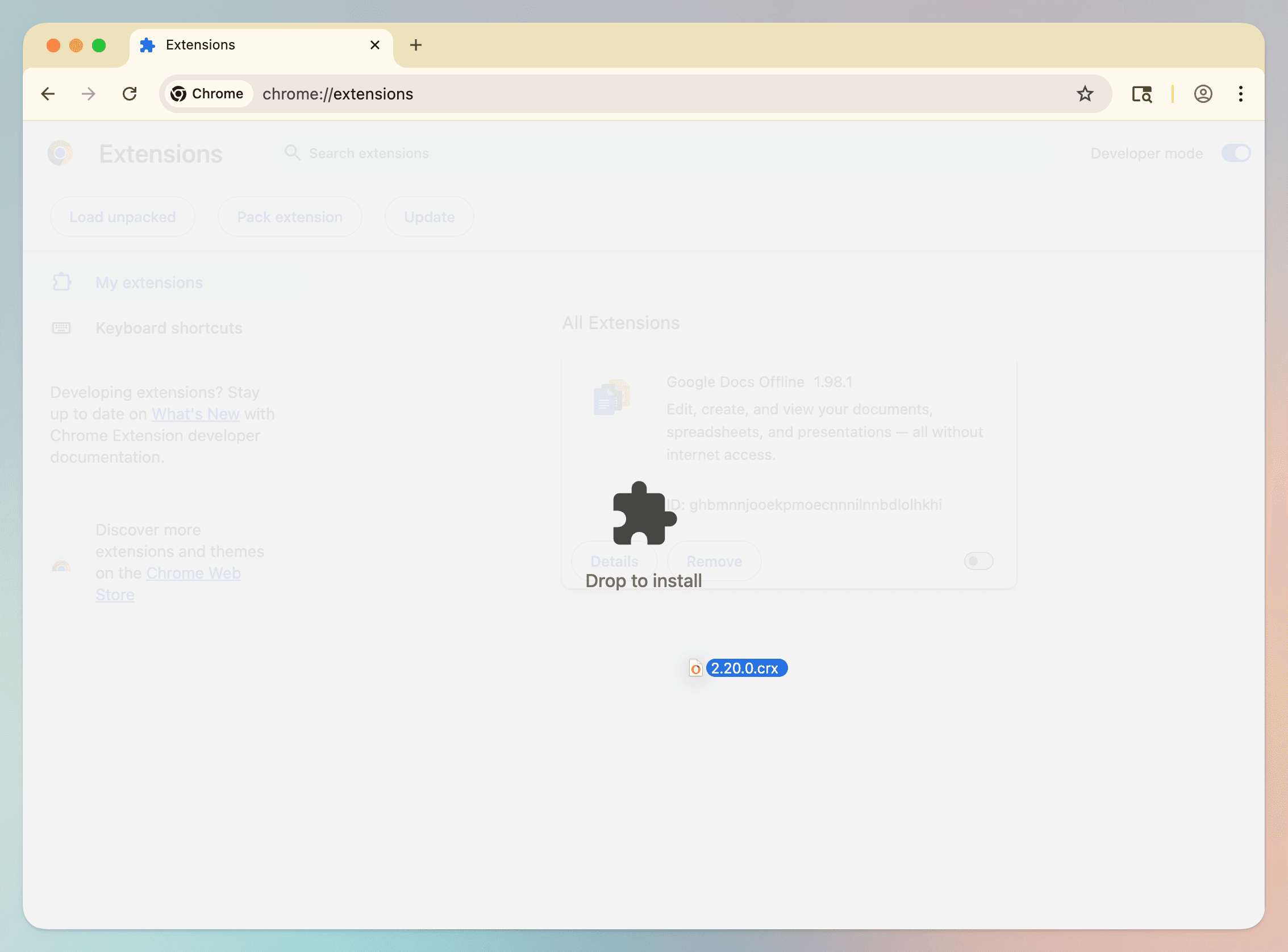
- Drag the
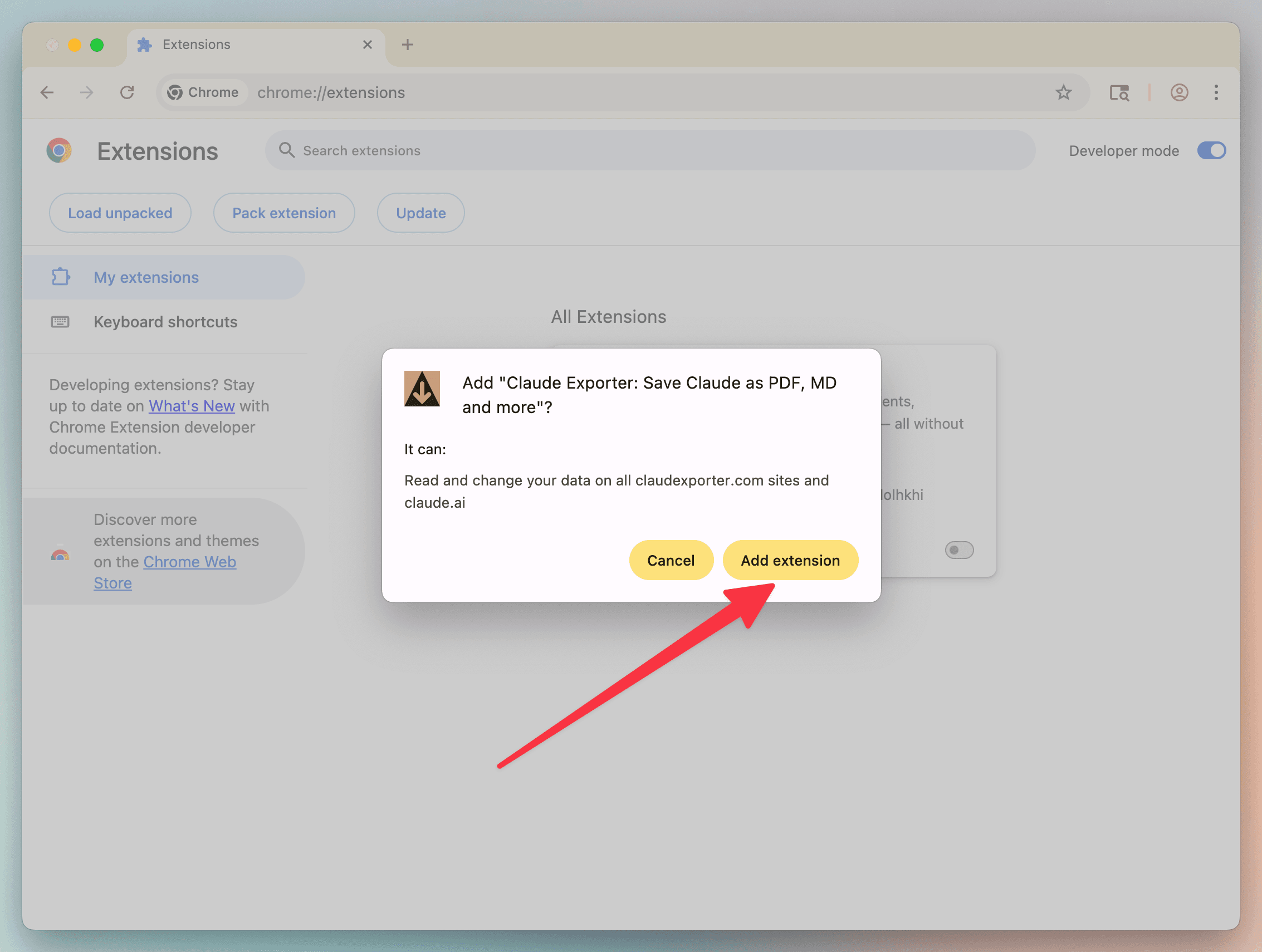
.crxfile into thechrome://extensions/window - Click to confirm the installation
Manually installed extensions will not auto-update. If you encounter any issues, please reinstall the latest version first. If problems persist, contact us at [email protected].
Edge Users
Method 1: Edge Add-ons Store (Recommended)
- Visit the Edge Add-ons Store
- Click “Get”
- Confirm the installation
Method 2: Manual Installation
Follow the same steps as Chrome manual installation, but navigate to edge://extensions/ instead.
After Installation
Once installed, you’ll see the Claude Exporter icon in your browser toolbar. Click on it while viewing a Claude conversation to export it.